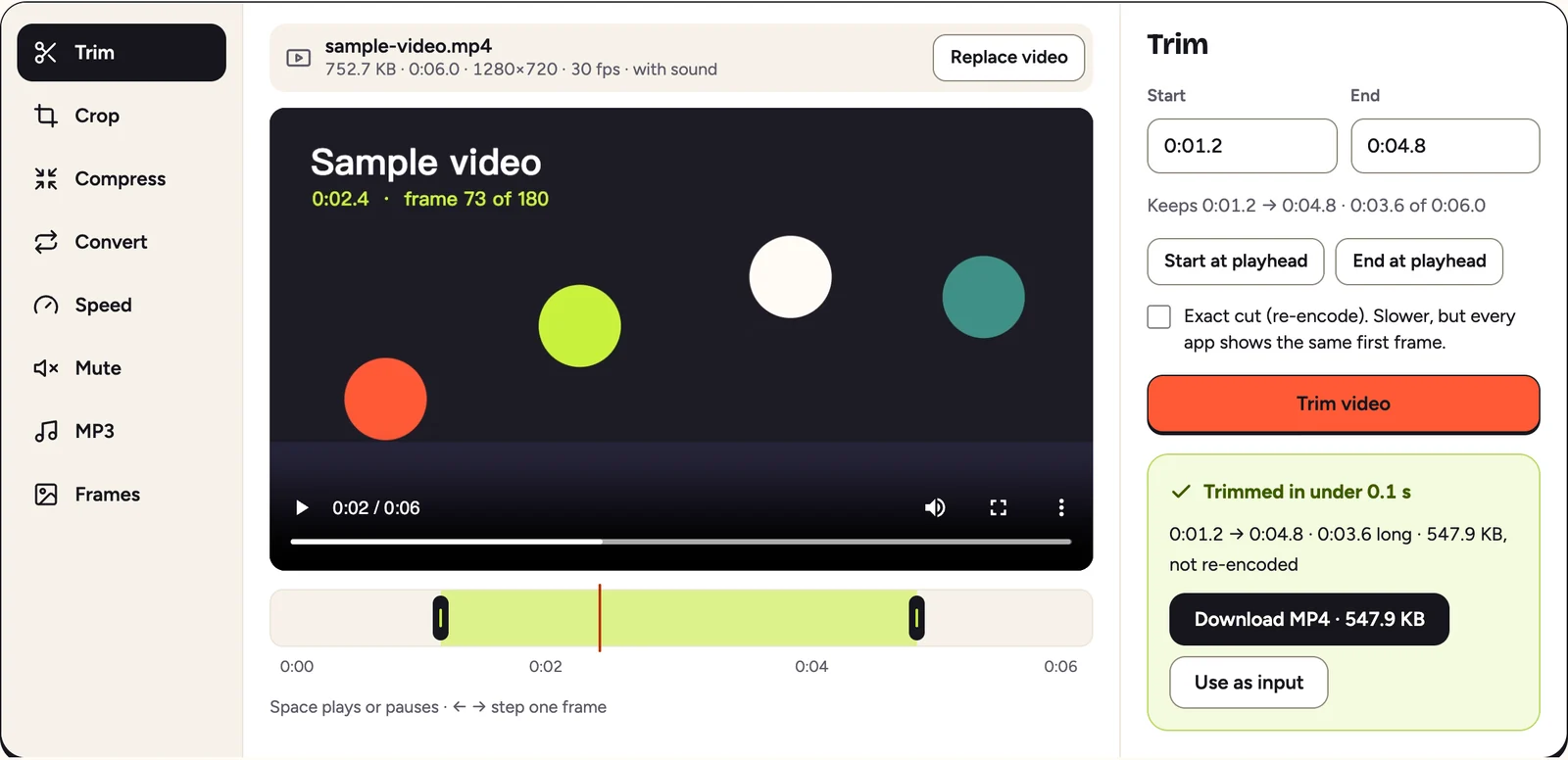
How to trim a video
- Open your video. Drop it in the box above or click to choose it. It plays right away in the preview; nothing is uploaded.
- Set the start. Drag the left handle on the timeline under the video, type a time such as
0:12.5, or play the video and press "Start at playhead" when it reaches the moment you want. - Set the end the same way, with the right handle or "End at playhead". The line under the times shows the clip length as you go.
- Check the selection. Press play: the preview starts at your start point and stops at your end point, so you can check both cuts.
- Click "Trim video" and download the new file. It is named after your original with -trimmed at the end. To do another job on it, press "Use as input".
Fast trim or re-encode?
| Fast trim (default) | Exact cut (re-encode) | |
|---|---|---|
| Speed | Near-instant: the data is copied, not encoded | Slower; in our test a 20-second 720p clip took 1.5 seconds on a laptop |
| Quality | Identical to the original | Very close, encoded at a bitrate similar to the original |
| File size | Can include a few hidden frames before the start | Holds only the frames you kept |
| Shows correctly in | Browsers and most players | Every app |
Most people never need the exact cut. Use it when a video editor or a messaging app shows a frozen picture or extra seconds before your start point.
Typing times
Times use minutes and seconds with an optional decimal: 45 is 45 seconds, 1:30 is one minute thirty, 1:02:05.5 is one hour, two minutes and 5.5 seconds. A time that is not valid, past the end of the video, or an end before the start is marked in red and the button waits until it is fixed. You can also select a handle and nudge it with the arrow keys.
Common uses
- Cut a long screen recording down to the part that shows the bug or the answer.
- Shorten a clip for a chat app before you compress it for Discord; a shorter clip keeps more quality under the same size limit.
- Remove the fumbling at the start and end of a phone video before you share it.
- Make a short loop or reaction clip from a longer video, then crop it to square or vertical.
Privacy and limits
The video is read from your device and the new file is written in your browser's memory, so nothing is uploaded and there is no account. Very long or very large videos can run out of memory on phones; a computer handles them better.
Trimming works with MP4, MOV, MKV and WebM files. H.264 video opens everywhere. HEVC (H.265), used by some phones and cameras, only plays in the preview where the browser and device can decode it, but the fast trim still works because it copies the data without decoding it.
Video trimming questions
Does trimming lower the quality?
Not by default. The tool copies the original video and sound data into the new file instead of re-encoding them, so the kept part looks and sounds exactly like the original. Only the exact cut option changes the data.
Why is the trimmed file bigger than I expected?
Videos can only start decoding at a keyframe. When your start point falls between keyframes, the file keeps the frames back to the previous keyframe and tells the player to skip them. The clip plays from your start point, but those hidden frames still take space. Tick Exact cut for a file that holds only the frames you kept.
Another app shows a few extra seconds at the start. Why?
Some apps ignore the instruction that hides the frames before your start point. Trim again with Exact cut ticked; that file contains only your selection, so every app shows the same thing.
How precise is the cut?
You can set times to a tenth of a second, and the clip plays from that point in browsers and most players. For frame-exact cuts in every app, use Exact cut.
Can I cut out a part in the middle?
Not in one step. This tool keeps one continuous part. To remove a middle section, trim the first part and the second part separately.
What format is the result?
MP4 for MP4, MOV and MKV files, and WebM for WebM files. The name ends in -trimmed so you can tell it from the original.